Orkut Sharing

Wednesday, August 5, 2009

New in Gmail Labs: Remove Labels from Subjects

image Google has come up with a brand new experimental feature in Gmail Labs: Remove Labels from Subjects that allows to hide labels from the messages in your inbox and giving you a plenty of space for the messages subjects.

Gmail label is one of the most useful feature to categories incoming emails automatically or manually to get the mails at the right places. However given labels are marked in front of  the subject line and due to this it becomes difficult to read the subject of emails if the size of the screen is smaller.

Remove Labels from Subjects – Disable  

inboxwithlabels

This new feature would a great help for those people who have a habit to browse through emails based on the subject and having a smaller screen size. By enabling the new feature Remove Labels from Subjects would automatically hides the labels from the subject line in you inbox which would give plenty of space for subject to get displayed.

Remove Labels from Subjects – Enable  

inboxnolabels

Steps to enable Remove Labels from Subjects :

  1. Login to Gmail.
  2. Go to the following path Setting –> Labs tab and scroll down to locate “Remove Labels from Subjects ”. 
    Remove Lables from Subjects
  3. Select “Enable” and then click “Save Changes”.
  4. You are done – No more labels in the subject line !

I personally like Gmail labels and its pretty useful too however I don't have this issue because of my wide screen laptop, but for those who has a smaller screen they can try using their personal abbreviation for labels like for example:

  • Important – IMP
  • Different types of bills – Bills / MBill (mobile bill) / IBill (Internet bill)
  • Different banks – Banks

Which would use small amount of space of the subject line and you can get both the labels as well as subjects on your screens.

Abbreviation Labels 

Abbreviation Lables

Please do let us know if above information helped you or if you have any more suggestion like these by leaving comments.

[via: Official Gmail blog]

Labels: ,

Saturday, July 18, 2009

New in Gmail Labs: Authentication icon for verified senders

Gmail is always trying to improve and work on new ways to protect Gmail inboxes from spam and phishing emails. They have recently come up with a brand new feature in Gmail Labs: Authentication icon for verified senders. Enabling this new feature you can at least be sure you’ll not get any fake emails from eBay and PayPal.


Steps to enable Authentication icon for verified senders:

  1. Login to Gmail.
  2. Go to the following path Setting –> Labs tab and scroll down to locate “Authentication icon for verified senders”.   
    gmail_authentication
  3. Select “Enable” and then click “Save Changes”.
  4. You are protected..!

Now you will see a key icon next to verified emails that are “supper-trustworthy”. Which is a technical term invented by Brad Taylor meaning  key_icon_1

  1. The sender, usually a financial institution, is a target of phishers,  
  2. All of the sender's email is authenticated with DKIM (DomainKeys Identified Mail),
  3. Gmail rejects any fake messages that claim to come from this sender, but actually don't. 

As this is usually for a financial institution that’s the reason this feature is limited to just eBay and PayPal for now, however Gmail will try to add more senders in future which would be great and I think most of us would agree on it, don't we ?

Gmail also claimed that whenever more of the senders will be added we would automatically see the super-trustworthy key icon appear by those senders too. Do let us know what do you think about this new feature.

[Source: Gmail blog ]

Labels:

Wednesday, July 8, 2009

New in Gmail Labs: Back to Beta

gmail_back_to_beta Finally Gmail peels off its beta tag and has come out of it’s beta version. It has been more then 5 years now that Gmail has been in beta, which I think is the longest time ever a product has been kept in beta version. Now Google has made a benchmark for keeping products in beat version which I think no one can compete it .

Jokes apart, lot of people are happy with this huge move which Google has made. Gmail is not the only product which has been moved out the beta version other Google Apps has also followed it.


Google Apps out of  beta version:

  1. Google Calendar
  2. Google Docs
  3. Google Talk
  4. Gmail

If you have been using Gmail for a long time and can’t digest to loose the gray “BETA” label under Gmail logo then you bring it back from Gmail Labs: Back to Beta.


Steps to enable Back to Beta:

  1. Login to Gmail.
  2. Go to the following path Setting –> Labs tab and scroll down to locate “Back to Beta”.  
    gmail_back_to_beta
  3. Select “Enable” and then click “Save Changes”.
  4. You are back to beta

Coming Soon:

Google has also announced that they would be coming up with few other Google Apps features in coming months or so.

  • Enhancements to Apps reliability
  • Mail delegation
  • Mail retention

Though the beta tag is out they would continue their journey to improve their products. Let us know what do you think about coming out of the beta version. Will you miss it or its for good.

[Source: Gmail blog ]

Labels: , ,

Friday, May 22, 2009

New in Gmail Labs: Inbox preview

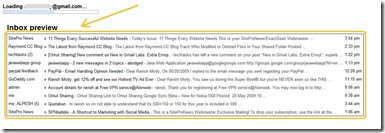
This new feature in Gmail Labs: Inbox preview would definitely please those Gmail users having slow internet connection. Earlier you had to stare a blank white screen while the process bar was loading, with new inbox preview feature you can get a glimpses of 10 most recent emails subject lines in plain text format, during Gmail is loading.

gmail_inbox_preview_2

Steps to enable Inbox preview :

  1. Login to Gmail.
  2. Go to the following path Setting –> Labs tab and scroll down to locate “Inbox preview ”.
    gmail_inbox_preview
  3. Select “Enable” and then click “Save Changes”.
  4. Now check it out !

Next time you login into Gmail and if you’re on a slow connection you be able to see the your mails and can make out from the start if it’s worth waiting.

There are few other Gmail notifier applications and Firefox add-on’s which will show you a pop-up when a new message has arrived. Have a look at this Firefox add-on Multi-Login in Google Account and let us know what do you think about it by leaving comments below.

[via: Official Gmail Blog ]

Labels:

Wednesday, May 20, 2009

New in Gmail Labs: Message translation

3330079085_3bce8cae57_mGoogle has recently announced a new feature in Gmail Labs: Message translation. Now whenever you receive an email which is other then your language, this new feature will help you translate it into a language you can understand in one click. Gmail is making it sure that language should not be an obstacle for its user.

Steps to enable Message translation:

  1. Login to Gmail.
  2. Go to the following path Setting –> Labs tab and scroll down to locate “Message translation”. 
    gmail_message_translation  
  3. Select “Enable” and then click “Save Changes”.
  4. Now no language barrier for you.

After enabling this feature you can see a link available in the message, if the language in the email is anything other than your default language as shown below.

autotranslate

This feature would help us save lot of time, before we had to copy past it to Google translation page and then see what was the result. From now onwards let your pen-pal, business partners or your client know how good are you in understanding other languages. Let us know how this new feature helped you by leaving comments below.

[via: Official Gmail Blog]

Labels:

Sunday, May 3, 2009

New in Gmail Labs: Google Search

With this new feature added recently in Gmail Labs: Google Search most you will agree with me that this feature should had been added long time back. But better late then never so lets see its features and how to enable it.

gmail_labs_google_search_3

Steps to enable Google Search:

  1. Login to Gmail.
  2. Go to the following path Setting –> Labs tab and scroll down to locate “Google Search”.
    gmail_labs_google_search
  3. Select “Enable” and then click “Save Changes”.
  4. Get started you have done it !

Features of Google Search in Gmail:

gmail_labs_google_search_1

  1. Now you don't have to leave Gmail to search online for something.
  2. After enabling it you’ll see a new search box on the left side of your inbox. gmail_labs_google_search_2
  3. The search typed would be saved below the new search box, for fast search again. 
  4. The search result will get displayed at the bottom of the screen which would be little bigger then the chat window.
  5. Any of the result can be shared during chatting.
  6. You can also always compose a new message to send the search result.
  7. Even paste the URL in your message.

[via: Official Gmail blog]

Labels:

New in Gmail Labs: Extra Emoji

After the successful launch of the few emoticons in Gmail, Google was not satisfied with it so they recently launched Extra Emoji in Gmail Labs to express yourself to the fullest. Now you can say that this new added feature is (great).

Steps to enable Extra Emoji:

  1. Login to Gmail.
  2. Go to the following path Setting –> Labs tab and scroll down to locate “Extra Emoji”. 
    gmail_labs_extra_emoji
  3. Select “Enable” and then click “Save Changes”.
  4. You are done !

Start using your imagination and make the most out of these new emoticon which is divided into 13 different categories such as fruits, animals, cool signs etc. in your email.

gmail_labs_extra_emoji_2

All these extra emoticons were added by the Gmail team in Japan  from the secret underground labs of some of the top Japanese mobile carriers which is used with their permission.

[via: Official Gmail blog]

Labels:

Friday, April 17, 2009

New in Gmail Labs: Suggest more recipients

Today Google came up with one new feature in Gmail Labs: Suggest more recipients. Let Gmail put their thinking cap on to give you suggestions who else can be added to the recipients while composing a message.

Steps to enable Suggest more recipients:

  1. Login to Gmail.
  2. Go to the following path Setting –> Labs tab and scroll down to locate “Suggest more recipients”.
    suggest_more_recipients
  3. Select “Enable” and then click “Save Changes”.
  4. That's it you are done !

Once this feature has been enabled you would see suggested recipients which can be included based on the groups of people you email most of the time. So if you have a group of friends with whom you always share mails, then entering at least two recipients and Gmail will suggest others as shown in the snap shot below:

suggest_recipients2 

You just have to click on a suggested name and they will get added to your email.

Hope you enjoyed this post. Drop your comments below.

[via: Official Google Blog ]

Labels:

Friday, April 10, 2009

New in Gmail Labs: Inserting images

Finally Gmail team came up with this needed feature in Gmail Labs: Inserting images. Before we always had to attach images in the email or use workarounds shared by Lifehacker: How to insert images and other HTML into Gmail. However now Gmail team came up with an important missing feature Inserting images in Gmail Labs.

Steps to enable Inserting images:

  1. Login to Gmail.
  2. Go to the following path Setting –> Labs tab and scroll down to locate “Inserting images”.
    inserting images
  3. Select “Enable” and then click “Save Changes”.
  4. That's it you are done !

After enabling this feature you’ll see a new icon in the toolbar as shown in the snap-shot

You can insert images in two ways:

  1. My Computer: Upload images files from your computer.
  2. Web address (URL):  Providing images URL. (Gmail doesn’t show URL-based images. Receiver have to click "Display images below" or "Always display images from ..." to see images to avoid spamming )

inserting_images_1

I noticed that it take some time to display images if they are large in size. So if you click on the image you will get an option to resize it as (small, medium, large) or you can even drag and to resize it. Hope that might help.

inserting_images_2

Hope you enjoyed this post. Drop your comments below.

[via: Official Google Blog ]

Labels:

New in Gmail Labs: Sender time zone

Gmail team added a very useful feature in Gmail Labs:Sender time zone for those people who receives messages from around the globe.

Steps to enable Sender time zone :

  1. Login to Gmail.
  2. Go to the following path Setting –> Labs tab and scroll down to locate “Sender time zone”. 
    sender_time_zone
  3. Select “Enable” and then click “Save Changes”.
  4. That's it you are done !

Once this feature is enabled it will show a green phone icon next to people who are probably awake or if it’s appropriate time to call the sender (this is between 9:00 AM and 6:00 PM sender’s local time zone) and red phone icon when they could be out of office or sleeping.

sender_time_zone_1

If you click “show details” and you’ll also see the current local time of the sender. It always include the time sent and often include time zone info too this is used to show these icons:

sender_time_zone_2

Hope you enjoyed this post. Drop your comments below.

[via: Official Google Blog ]

Labels:

Thursday, April 2, 2009

New in Gmail Labs: Search Autocomplete

Gmail team has come up with one more new feature in Gmail Labs: Search Autocomplete. This will make us lazier, why? Now you don’t have to remember the whole email id or the name to search there respective mails. You can just type a couple of letters in the search box and select the desired contact from the drop down list to read there messages which is easy and quick.

Steps to enable Undo Send:

1. Login to Gmail.
2. Go to the following path Setting –> Labs tab and scroll down to locate “Search Autocomplete”.


3. Select “Enable” and then click “Save Changes”.
4. That's it you are done!
5. Now when you type couple of letters in the search box you will see the a drop down list with the suggestion list of related letter names and email addresses


6. That’s not all you can also search attachments, photos, documents, videos and calendar events as well.


Gmail team is doing a great job to make it users more addicted to use Gmail as it has all the ingredient to make anyone fall for it.

Hope you enjoyed this post. Drop your comments below.

[via: Official Google Blog]


Labels:

Thursday, March 19, 2009

New in Gmail Labs: Undo Send

Today Gmail has come up with one of the most interesting feature in Gmail Labs: Undo Send. If you have clicked the send button on email message in Gmail and later realized that it was not sent to the right person or forget to attach an important file.

Now you wont have to regret about it because Gmail has introduced a new Undo link option on every sent email by which you can bring back the send email to compose area. Where you can correct your mistakes.

gmial_labs_undo_send_1 

Steps to enable Undo Send:

  1. Login to Gmail.
  2. Go to the following path Setting –> Labs tab and scroll down to locate “Undo Send”.
    gmial_labs_undo_send 
  3. Select “Enable” and then click “Save Changes”.
  4. That's it you are done !

What's the catch  

This feature has to be used within five seconds after sending an email. As it holds your sent email for five seconds so that you get a chance to hit the panic button (i.e. Undo link). If the email has already gone then this feature will not work.

Hope you enjoyed this post. Drop your comments below.

[via: Official Google Blog ]

Labels:

Wednesday, March 18, 2009

New in Gmail Labs: YouTube, Picasa, Flickr and Yelp previews in mail

beaker_thumb[2] Many of us share links of new videos, pictures or wallpares which we like with our friends and family members. So earlier we had to click the link to get it open in a new tab to see it or else copy past the link to have a look at it, but now Gmail has come up with a few new in Gmail Labs which would help us to view the videos or photos in the mail itself.

Following are the new Gmail Labs features:

  1. YouTube previews in mail.
  2. Picasa previews in mail.
  3. Flickr previews in mail.
  4. Yelp previews in mail.

Steps to enable YouTube, Picasa, Flickr and Yelp previews in mail:

  1. Login to Gmail.
  2. Go to the following path Setting –> Labs tab and scroll down to locate “YouTube, Picasa, Flickr and Yelp previews in mail”.

    gmial_labs_perviews_in_mail
  3. Select “Enable” and then click “Save Changes”.
  4. You are done ! Now when ever you will get a link of YouTube, Picasa, Flickr or Yelp you will be able to see the previews in the mail as shown in the snap-shots

    YouTube
    gmial_labs_perviews_in_mail_1
    Picasa
    gmial_labs_perviews_in_mail_2
    Flickr
    gmial_labs_perviews_in_mail_3
    Yelp
    gmial_labs_perviews_in_mail_4

Gmail team first worked and checked which were the links shared by most of the people for sharing videos and picture and then they came up with YouTube videos, Picasa and Flickr links and Yelp reviews. Where as in Yelp you could preview the ratings, phone numbers and other listing information right in you mail.

This would turn out to be a great features for all those lazy people who would not link to open a new tab to see the videos and pictures

Hope you enjoyed this post. Drop your comments here.

[via: Official Google Blog ]

Labels:

Wednesday, March 4, 2009

New in Gmail Labs: Filter import/export

beaker Using filters in Gmail has made most of our work easier and faster. Today Gmail team has added one more new feature in Gmail Labs: Filter import/export. Which made our filters more easier to use by giving an option of importing filters as well exporting filters also. Below you will find the explanation and snap-shorts of this new feature.

With this new feature you can:

  1. Export your mail filters as a file.
  2. Back them up.
  3. Share them or
  4. Even save them before deleting so you can restore them later.
  5. Import one of these files to quickly add or restore filters.

Steps to enable Filter import/export:

  1. Login to Gmail.
  2. Go to the following path Setting –> Labs tab and scroll down to locate “Filter import/export”.
    gmail_filter_import_export
  3. Select “Enable” and then click “Save Changes”.
  4. Now go to the following path Setting –> Filters

    gmail_filter_import_export_1
  5. Tick the check boxes of filters which you want to export by clicking the “Export” button
    gmail_filter_import_export_2
  6. Or you can import a filter which want to use by clicking the “Import filters” link

    gmail_filter_import_export_3

Below are some cool things which can be done with this new feature:

  1. Make a back-up of your filters by exporting all you filters.
  2. Share your filters with other people. If they are also getting similar mails from a sender. Like in offices.
  3. Use the filters which is needed, by temporarily deleting other filters.
  4. When want to use it again just re-import them from the exported file.
  5. As the file are saved in XML format its light, easy to use  and editable.

So  get your hands on this new feature in the Gmail Labs and to get more information about the XML file you can have a look at the Gmail Labs user group for Filter import/export.

Hope you enjoyed this post. Drop your comments here.

[via: Official Google Blog ]

Labels: